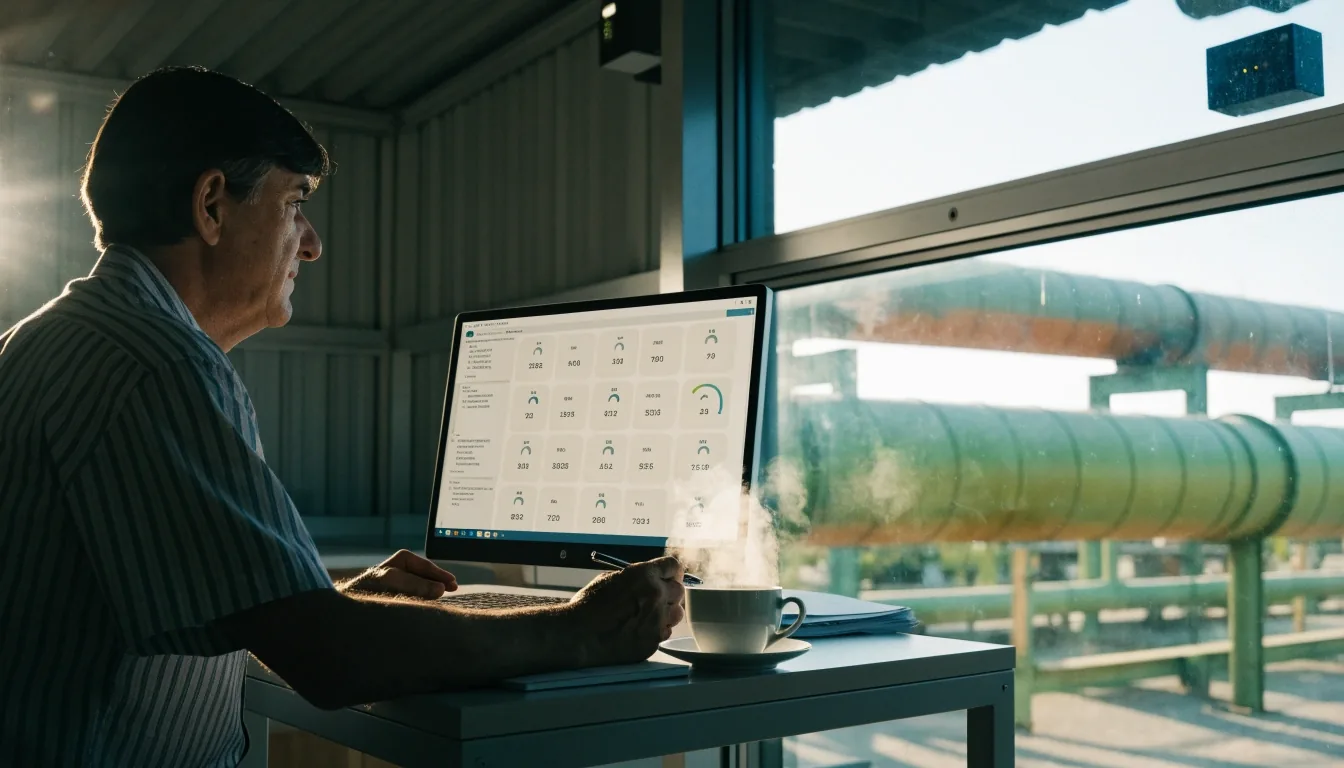
Data2Desktop and Omnergy · desktop visibility for US facilities
We put your field alarms where you can act on them.
Data2Desktop and Omnergy give your office a daily reading of the same signals your control room watches. Levels, run hours, alarm states and communications health from Teleterm and Conlog remote monitoring — set up once, checked against the instrument, and kept readable every morning.
What lands on the desktop
Levels, run hours, alarm counts
Read of the same contacts
Panel, SCADA and desktop agree
Access model
Read for the office, alarm authority to control
Set up from
Edina, Minnesota
Signal path
From field contact to desktop row
Every signal that reaches a screen in your office started as metal and pressure. Following that path once makes the reading on the screen trustworthy for years afterwards.
The device sends the value as it reports. The Teleterm RTU collects the reading, the Conlog gateway combines other monitors onto one path, and the desktop row appears the moment the poll lands. There is no separate spreadsheet to keep.
RTU and gateway
The name never changes along the way. If the strip label reads Tank 3 Level, the desktop row reads Tank 3 Level. Scripts, exports and phone calls all use the same name.
Identical naming
Units and scaling are set once. We write the engineering unit, the decimal places and the range at configuration. Then we prove the reading against the field instrument before the value is trusted.
Scaling proven
Operators trust the number because they saw it proven. We walk a basin, run a pump and watch the desktop follow, so the reading is a verified instrument value and not a hopeful figure.
Read, walk, verify
This path is also why the alarm annunciator panel and the desktop do not disagree. Both read the same discrete contact from the same terminal strip, so an alarm the annunciator window shows is the same alarm the office screen shows.
The morning view
Daily checks that stick
We build the first screen your staff open with coffee: the readings they need to decide which site needs a visit today. Thresholds match your own operating limits rather than the defaults, and seasonal adjustments are noted so a winter read and a summer read both make sense.
The view fits on one page without menus, sorting or a scrolling wall of wells.
-
Tank and wet-well levels from the plant's float and analog transmitters
Teleterm RTU
-
Run hours on the lift, booster and dosing pumps
Teleterm RTU
-
Alarm counts per site since midnight, with the worst tabbed first
Alarm annunciator panel
-
Communications health for every site on the map, day and night
Teleterm and gateway
-
A site reporting on schedule; the lamp stays dark on purpose
Reporting normally
Refresh target
Once per day cycle, by site priority
Thresholds
Your operating limits, not defaults
Visibility for remote assets
Every tank and yard, one screen
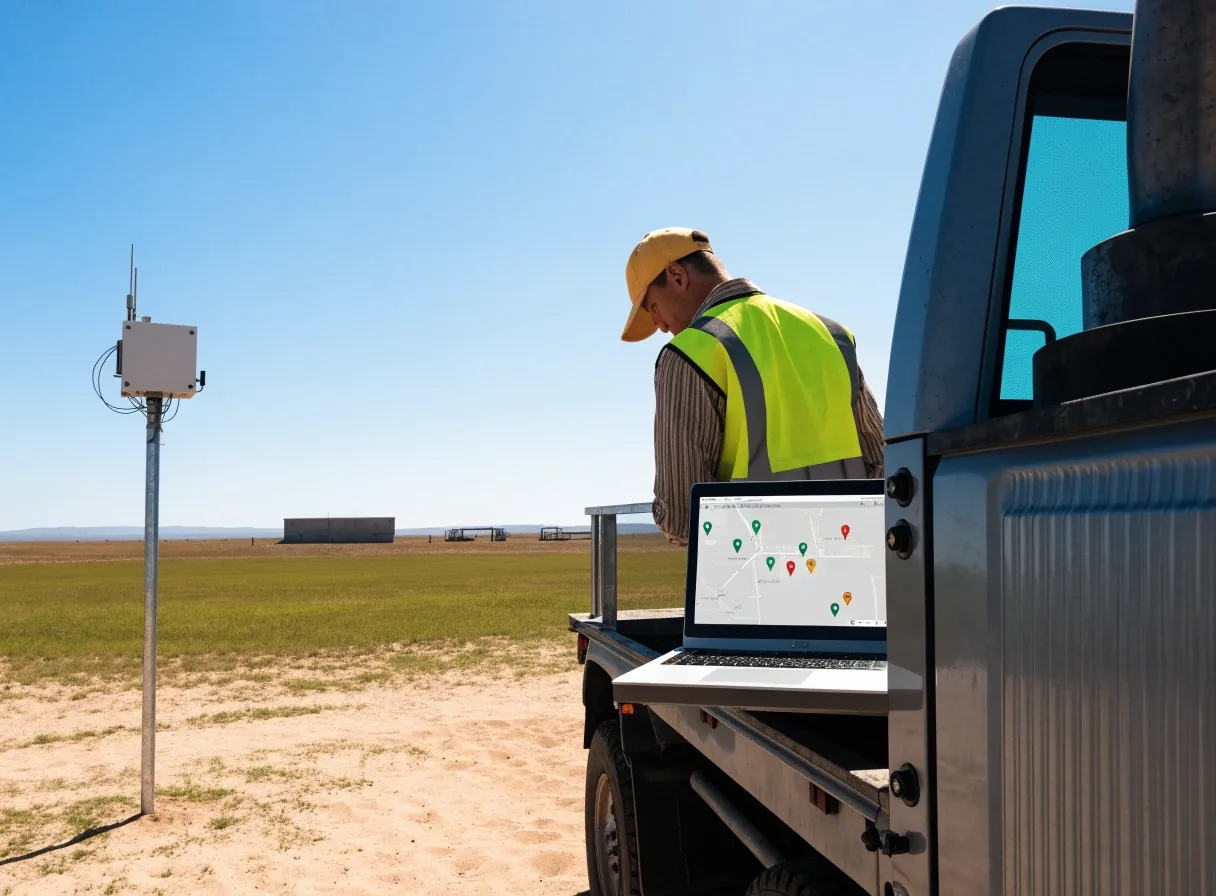
Cellular Teleterm S3G1 sites and radio-linked M3R2 stations do not get a fixed reading schedule. Each one keeps its own report interval, set against how it is powered and how much airtime it uses across the network.
The brief carries the figure that decides the schedule. The S3G1 brief C2380C-11 and the M3R2 brief with 12 configurable I/O both stage how many points each station can carry. High-risk sites — a lift station at peak flow, a dosing skid near an outfall — report more often. Low-risk tanks and settling basins report on a steady cycle.
When you want to know a specific reading, you click a site and the last known value shows. If a site is quiet because its interval is longer, the screen says so instead of pretending the reading is fresh.
Report interval
Set per site priority
Access path
Cellular or radio link
Points per station
From the S3G1 or M3R2 brief
Stale reads
Flagged, not faked
Keeping history useful
What happened before the alarm
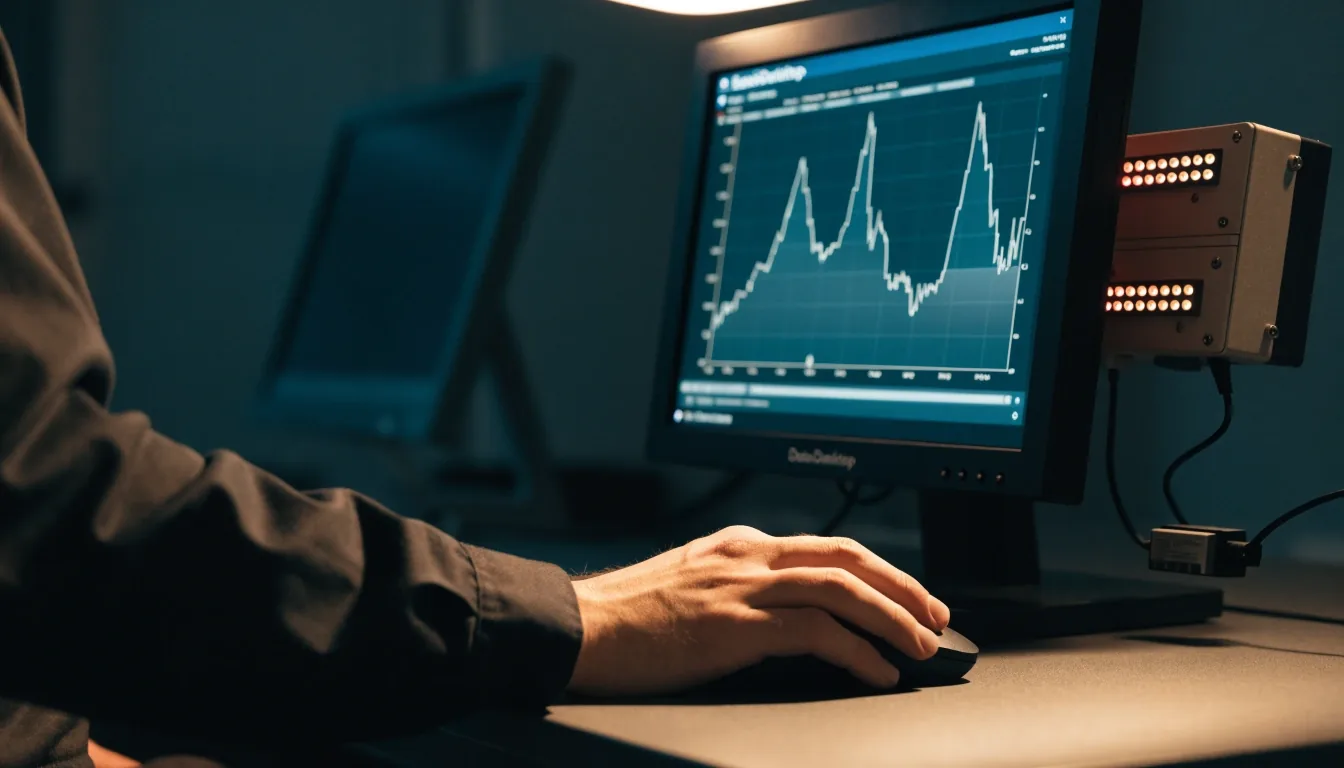
A short log answers a question the alarm alone cannot. When a pump trips at 3 a.m., the trend around that moment shows whether the level climbed, whether the run time was already high, or whether a communications drop slept the site through the event. The graph is the difference between guessing and knowing.
We set how long the plant keeps each stream — days of fine resolution, then a longer compressed history for context. You pull a week of levels around an event, name the file after the site and the date, and open it without special software. No locked formats that a single PC at the plant can read.
Export window
A week of levels around the event
File naming
Site and date on every file
Retention
Short fine history, longer band after
Access and responsibility
Who can see, and who can change
Desktop visibility needs clear ownership. We set read and acknowledge roles together with your supervisor, so the office sees the data while the control room keeps alarm authority. Nobody has to argue about who approved a threshold change on a Tuesday afternoon — the change carries a name and a date.
Password and access notes are handed to the owner your plant designates. If they leave, the notes travel with the desk.
Every edit to a threshold, an interval or a mapped point lands with a date and a name in the log we set with you at handover.
The desktop does not take authority away from the annunciator panel or SCADA — it gives the people who plan the day the same information the alarm system already carries.
When numbers look wrong
A check path your crew can walk
A wrong-looking reading is one of two things: a real event, or a signal that never landed. The check path walks the same layers a commissioning engineer uses, so your crew isolates the layer before they call for help.
Most faults trace to a sensor that has aged, or to a comm interval that was stretched too far for the power the site had. The desktop itself is rarely the fault — but the check path will tell you that too.
Need help mid-check? Call Omnix Agent at +1-952-835-4420.
-
01
Compare the desktop to the panel
Open the same point on the alarm annunciator panel and the desktop. If the panel shows a live value and the desktop does not, the issue is between the RTU and the display path.
-
02
Take the panel reading to the instrument
Walk out with an independent read — a sight glass, a handheld meter, a calibrated gauge. If the panel and the instrument disagree, the sensor is the layer to check.
-
03
Check the wiring and the strip
A loose ferrule, a terminal screw that walked back, a shield that was tied to the wrong busbar. This is where most discontinuity faults live, and a torque driver and a printed schedule find them fast.
-
04
Look at the last report time
If a site has gone quiet, check the last successful poll and the signal strength. A longer interval or a degraded link explains a stale reading — a fault in the signal chain explains a wrong one.
-
05
Call Omnix Agent with what you found
Tell us which layer you isolated. That saves the first hour of any remote diagnosis, and it keeps the fix on the right side of the plant.
Common questions
Before you sign off the desktop view
These two come up on nearly every data2desktop setup. If something else is on your mind, we can walk through it on a short call.
Ask a questionWhat is the difference between an RTU, a gateway, and remote I/O?
The RTU collects and reports field signals — that is the work the Omniflex RTU and Teleterm units do. The gateway combines data from other monitors into one access path, which is how Conlog remote monitoring feeds a single site view. Remote I/O places channels near the equipment instead of dragging cable back to the cabinet.
Desktop views can show all three as separate named rows. That is the main reason we label every source at configuration — a technician reading the screen later needs to know whether a value came from local terminals, a gateway hop, or a remote module, and the row should say.
Will office PCs show the same alarms as the control room?
Yes, when mapped that way. The annunciator panel windows, the SCADA alarms and the desktop rows share the same source contacts from the same terminal strip. We test all three views together during commissioning — one contact, three views, one outcome.
A non-critical window can be filtered to the desktop alone if the control room already watches it elsewhere, but the mapping is your choice, not a default. We write the mapping down so nobody has to guess it in year two.
Support from Edina
You are not the only plant on this shelf
Omnix Agent is a certified Omniflex integration partner based in Edina, Minnesota, working with US facility owners on Teleterm RTU commissioning, alarm annunciator panel wiring, and Conlog remote monitoring. We tune the desktop with your staff after the field work is proven, so the rollout is quiet rather than a project of its own.
Monday to Friday, 9:00 AM – 6:00 PM. Reach the team at 4820 W 77th St, Edina, MN 55435, by phone at +1-952-835-4420, or by email at info@omnix-agent.com.
Certified Omniflex partner in the US
Teleterm RTU commissioning, alarm annunciator panels, Conlog remote monitoring, and Data2Desktop / Omnergy desktop visibility.
Practice
4820 W 77th St, Edina, MN 55435
Monday to Friday, 9:00 AM – 6:00 PM
Reach the team